Log In, Log Out and User Profile Settings
Supported Browsers
Log in to your Device Manager instance from any of these supported browsers:
- Google Chrome 5 or later
- Internet Explorer 8 or later
- Firefox 3.6 or later
- Safari 5 or later
Logging In to the ACS
- Point your browser to the ACS URL. The login window opens.
- Enter your Username and Password*, which are case-sensitive.
- Click Login.
- A parameter has been added to limit the lifespan of a user’s password. Ten days in advance of the expiry date, a warning will be displayed to the user. Upon expiry, a new password must be created before system access can resume.
- Users may no longer set a password previously used on their account.
- New passwords are checked against a dictionary (passphraseDict.txt) If a user attempts to utilize a password that is located in the dictionary, it will be rejected. If required, an additional dictionary can be configured by an administrator.
- The number of invalid login attempts coming from a particular source IP in a given period of time is now capped. If the user entered incorrect credentials more than 3 times within 5 minutes, they will be locked out from attempting to try again for 5 minutes.
- The default 60 minute session lifetime is now configurable (in minutes). Inactive Device Manager sessions will be terminated when the set timeout is reached.
- As for basic password requirements, min/max password length, upper case or special characters allowed and other such details are set per specifications established by your organization when your Device Manager instance was originally configured. See your system administrator for details on your system.

The system processes your request and displays the Customer Support page.
If you forget your username or password or received an error message, contact your system administrator.
Video Tutorial
* If logging in for the first time with your temporary password, you will be prompted to customize your password to something new that to be used for subsequent sessions.
About User Passwords
Device Manager security features of note (v5.2 and later):
Logging Out of the ACS
In the top-right corner of the screen, select your username and choose Logout.
User Profile
Your user profile lets you automatically refresh device data, view system messages and log out of Device Manager.
To view your user profile, select your username in the top-right corner of the screen.
You can view the Device Manager Server and Plugin version details. Click the version numbers to open the respective Release Notes.
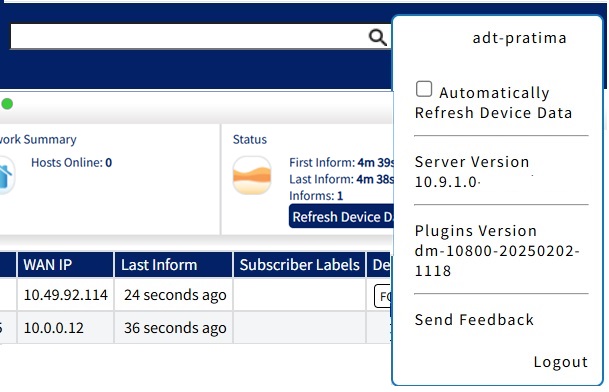
From Release 10.9.1.0 onwards, the server and plugin versions which were previously displayed in the page footer, are now displayed in the User Profile section.
Automatically Refreshing Device Data
If you check the Automatically Refresh Device Data field, viewing an account immediately polls the device and refreshes the display with the latest data from the device.
If you uncheck the field, make sure you explicitly refresh the data by selecting the Refresh Device Data button. Refreshing data takes time. If refreshing slows you down, uncheck the button.
The system stores your selection in a browser cookie. Reset your preference if you use a different computer.