Managing Device Synchronization
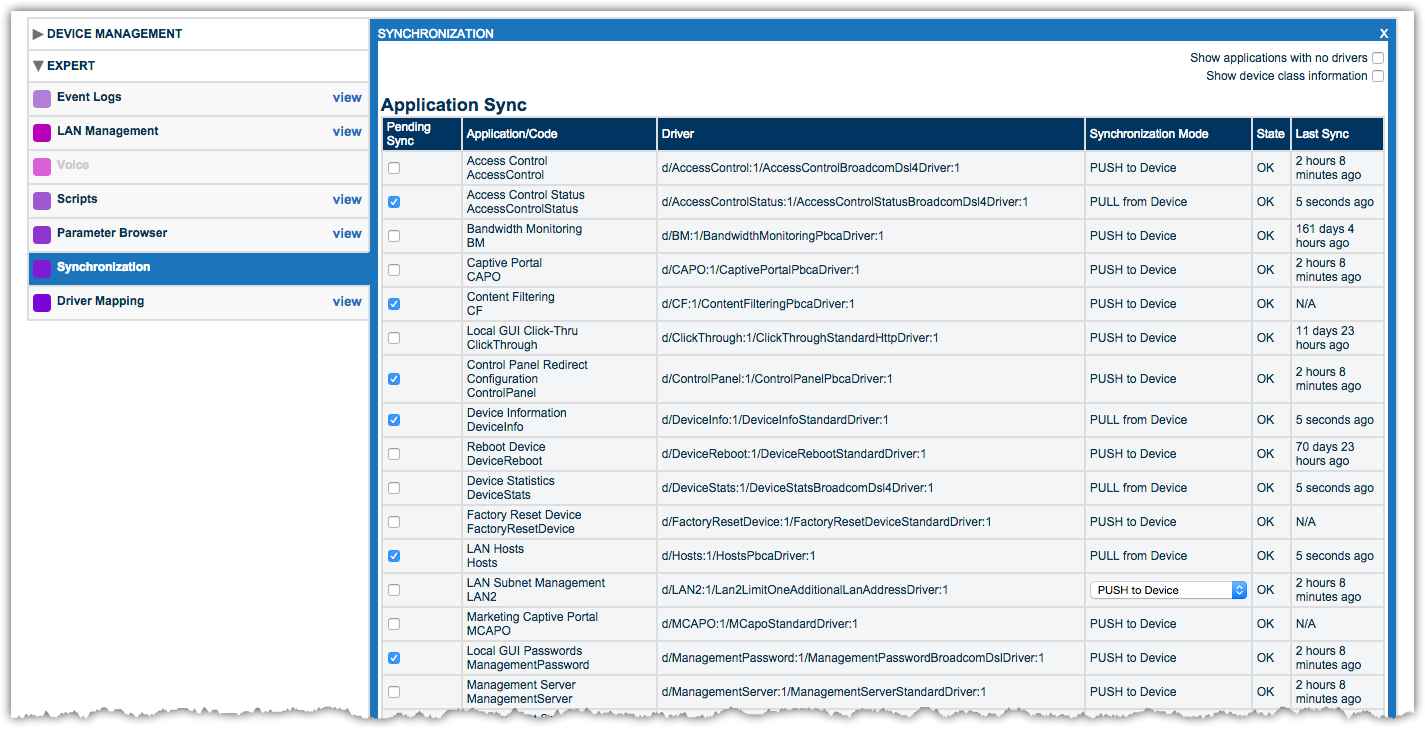
The Synchronization window lets you view parameters that can be synchronized between the device and server. You can see which applications need to be initialized or synchronized, and you can select items to synchronize. Use the Synchronization window to assess any synchronization failures that occur when you use the primary tools under the Account and Services menus (on the left sidebar).
Do not use the Synchronization window for routine synchronizing of applications. This function is exposed for deep level troubleshooting and requires extensive training for use. Instead, use the primary tools under the Device Management drop-down menu in the left navigation bar. Doing so invokes multiple applications that synchronize the entire device, not just parts of the device.
Access the Synchronization Page
- Enter the account record for the subscriber/device in question.
- Expand the Expert section of the left sidebar
- Select Synchronization.
Resolving Synchronization Failures
If you receive a “failed to sync” error while using the primary tools under the Device Management menu, do the following:
- Access the Synchronization page as described above.
- In the State column, locate the Failed notification and check the corresponding Pending Sync check box.
- Select Save to force the selected application to resynchronize.
- Verify that the failed to sync error has cleared.