Using The Parameter Browser
The Parameter Browser window displays device data in a tree hierarchy. The data model is based on the TR-098 specification but includes Device Manager extensions. You can browse the hierarchy and select a parameter to view its properties and parameter values.
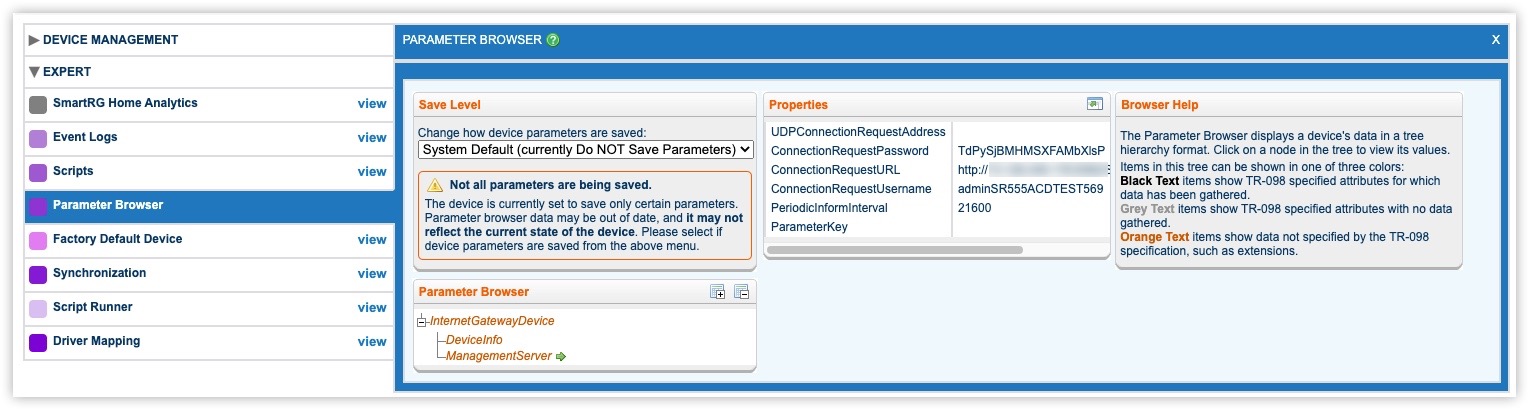
The Parameter Browser uses color to categorize information:
- Black text—Shows TR-098-specified attributes for which data has been gathered.
- Grey text—Shows TR-098-specified attributes for which no data has been gathered.
- Orange text—Shows data not specified by the TR-098 specifications.
To view device parameters
- Open the Parameter Browser window for an account.
- Use the plus and minus icons to display more of the parameter hierarchy until you see the parameter you want to investigate.
- Select the parameter.
- The parameter’s properties appear in the Properties section of the Parameter Browser window. Select the Expand icon to expand the Properties view.
- Use the icons on the Parameter Browser window to customize the display:
 Expand Parameter Hierarchy Expand the parameter hierarchy.
 Collapse the parameter hierarchy.
 Expand the Properties section to fill the window.
 Collapse the Properties section.
 Circled X Close the Parameter Browser.