Replacing a CPE Device
If a device malfunctions or the subscriber purchases your premium gateway offering, you'll want to take advantage of the Replace Device feature in Device Manager. The Replace Device window lets you copy settings from the currently displayed device to another device.
Make sure that the device from which you want to copy settings is selected and displayed on the Customer Support tab.
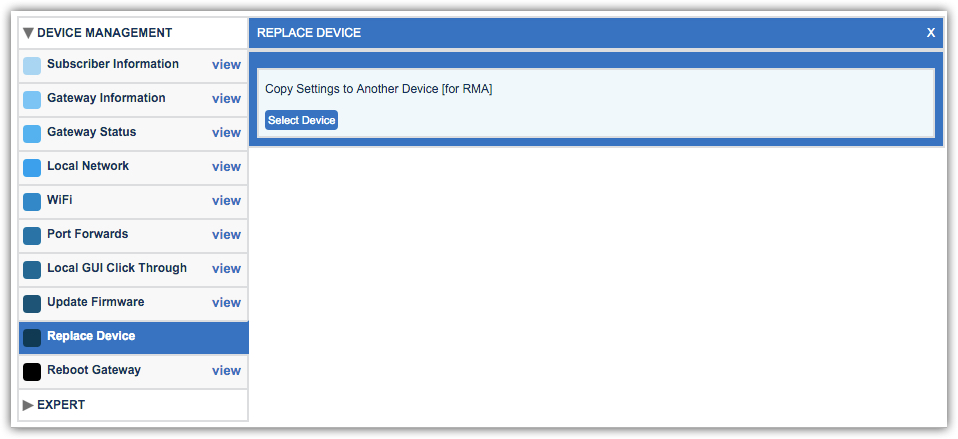
Copy Device Settings to Another Device
- From the left navigation bar, expand the Expert drop-down and select Replace Device.
- In the Replace Device window, select Select Device.
- Do one of the following to locate a device:
- Use the New Device tab to enter information about a new device that will check into your system in the future.
- Use the Existing Device tab to locate an existing CPE device not currently assigned to a subscriber. Click the device serial number to select it. Use the Activation Server Device tab to locate a CPE device.
Depending on how your Device Manager installation is configured, the Activation Server Device tab may not be exposed.
- Select the device to which you want to copy settings.
- Verify that the selected device is the correct one.
- Select Copy Settings.
After you copy the settings, the page reloads the information about the device that received the settings. You can then make changes to the new device.
Video Tutorial