About Weak WiFi
If a device has a weak WiFi signal at the AP (even if the device is showing strong reception on its own display), then the throughput will still be low. Two general cases cover most scenarios here. In the first case, the subscriber has placed the device needing high bandwidth in a poor signal area. In the case of set-top-boxes, gaming consoles, printers, thermostats, and other such devices, the signal strength is not always easy to observe on the device itself. In the second case, the subscriber is using a mobile device such as a tablet or phone and temporarily moved it to a location or orientation with poor signal.
In order to effectively troubleshoot WiFi issues, the following two concepts need to be understood.
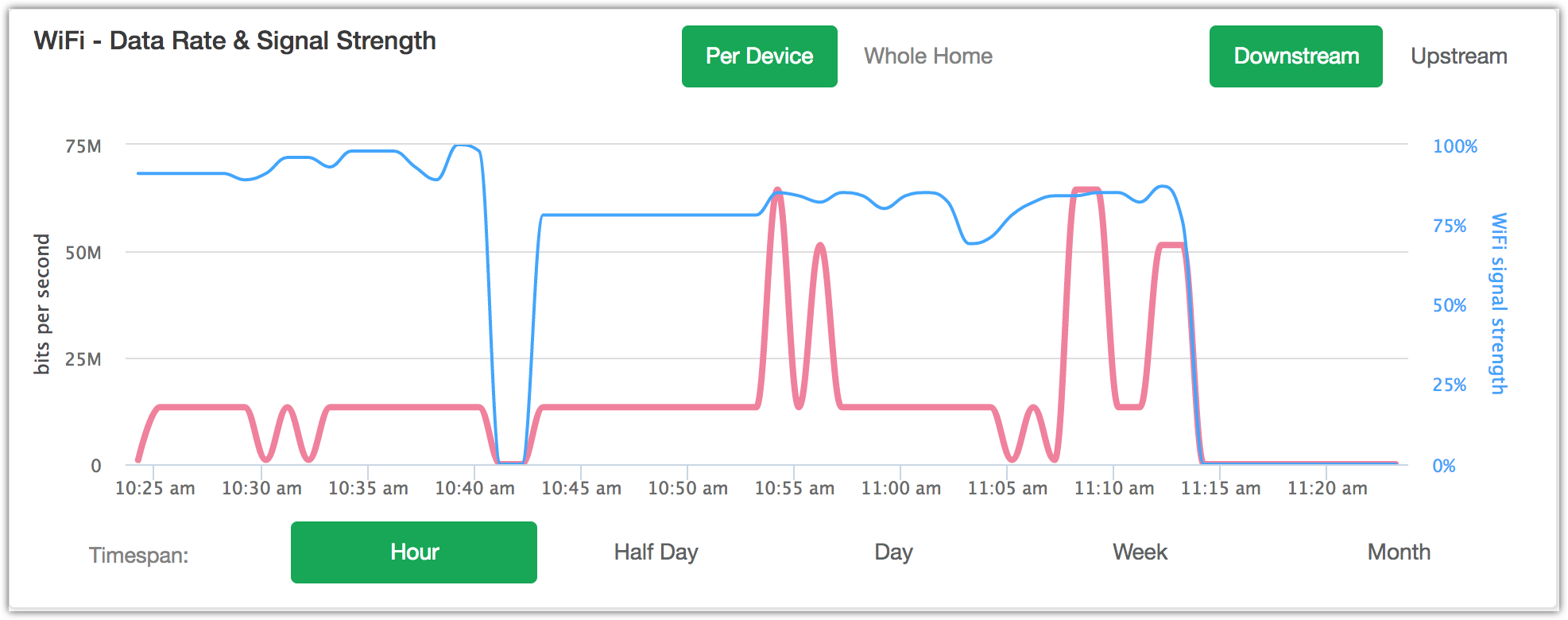
First, WiFi Data Rate is only the available bandwidth between a device and the AP. It has nothing to do with available bandwidth between the AP and the system on the Internet being accessed by that device. Second, the AP or the device may voluntarily select a low bandwidth mode if no higher bandwidth need is detected. For example, many devices go to a low-bandwidth mode when not in use. This is both to conserve power, especially for mobile devices, and to free up WiFi bandwidth for other devices that may need higher data rates. Consider this display:
WiFi Data Rate
At approximately 10:41am, the device turned off or left the network, so there's no signal at all. In this case, the pink line (data rate, read against the left axis) and the blue line (signal strength, read against the right axis) both go to zero.
However, at approximately 10:43am, the device comes back online with a data rate of 12Mbps while the signal strength remains good (anything above 50% is usually sufficient for good throughput). The data rate later jumps to 65 Mbps with no appreciable difference in signal strength indicating that the device simply moved closer to the gateway and was able to achieve a higher WiFi data rate. While this image depicts an overall healthy connection, your subscriber complaint scenario graph would be marked by multiple troughs in the throughput and signal strength during the timeframe in question.
Troubleshooting Weak WiFi Signal
Procedure
- Navigate to the WiFi page.
- Determine which device the subscriber was using during their poor Internet experience and select its device tile from the WiFi page. Also determine when (i.e., how long ago) the subscriber had the poor experience and look at that portion of the graph, selecting other Timespans if necessary.
What to Do Next
If this device is mobile, advise the subscriber to move closer to the AP when using high bandwidth, such as streaming video. If the device is not mobile, advise the subscriber to move the AP closer to the device. In both cases, a lack of dense obstructions between the AP and the device will help, especially when using 5GHz channels.