Provisioning
Provisioning the Subscriber Gateway to the Mosaic Home Analytics platform is a step required for getting the gateway to report it's data to the system. In the event that you do not have an integration in place for provisioning, these instructions are provided for manual entry. Automating this data entry is strongly recommended.
Begin by clicking the Admin drop-down list in the horizontal navigation at the top of the screen, then select Provisioning.
NOTE: This feature is not accessable to users with the role of CSR. It is only available to users whose role is set as Admin.
There are three, high level steps required to complete the provisioning process:
- Create a Subscriber
- Create a Device
- Associate the subscriber with the device
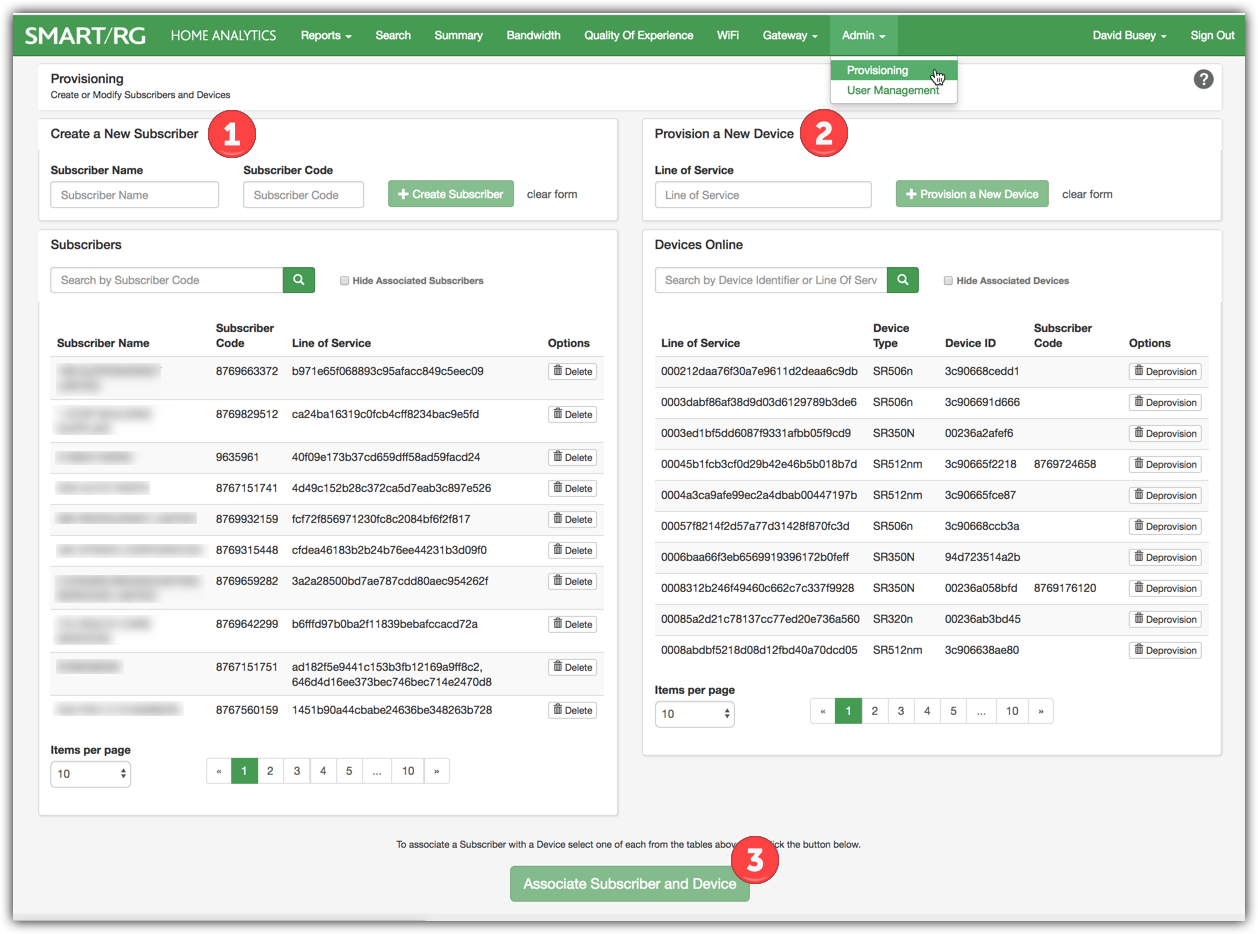
Let's take on each of these high level steps in detail.
STEP 1: Create A Subscriber
First, In the Create A New Subscriber panel near the upper left of the screen, complete all the fields:
| Subscriber Name | Enter the full name of the new Subscriber. |
| Subscriber Code | Enter a unique identifier for this subscriber. A 'customer number' from your 3rd party accounting or CRM sysems is often used for this. Alternatively, the subscribers phone number makes for a good, unique way to identify this customer. |
Next, click the  button.
The lower left of the screen is cleared of the list of all subscribers and filtered to show only this newly created Subscriber record.
STEP 2: Create a Device
In the Provision a New Device panel near the upper-right of the screen, fill in the Line of Service field, by entering a unique identifier forthis instance of service you wish to point to the Home Analytics platform.
This identifier represents a specific subscription and must be unique for a given person/address/service instance. Using the MAC address for the device might seem a good option but this is NOT advised. In the event that the CPE device is RMAd, this identifier instantly becomes invalid. Further confusion is also created if the RMAd device is tested then re-deployed to a different subscriber thus rendering the identifier no longer unique within your subscriber base.
Next, click the  button.
The lower right of the screen is cleared of the list of all devices and filtered to show only this newly created Device record.
NOTE: The system is flexible to meet the workflow and internal processes of your organization. As such, these first two steps do not have to be completed in the same sitting or even be completed in this sequence.
i.e. If your new subscriber workflow is such that you have subscriber information on hand but do not yet have a specific gateway selected to ship to that customer, you may complete step 1 as a stand alone step, exit this screen and come back for step 2 at any time. Furthermore, it is acceptable to do these steps out of order. In the event that you have gateway device information you prefer to enter into the system for later provisioning to future subscribers, this is also acceptable.
When the time comes to provision stand-alone Subscriber and Device records previously entered into the system, use the Search fields indicated below to locate the desired records. Click on the line item in the found list of records and the contents will be copied to the proper fields in the upper portion of the screen.

STEP 3: Associate Subscriber and Device
When the correct subscriber and device are shown in the panels discussed above, click the  button.
Mosaic Home Analytics automatically creates an encrypted URL called the PHAN* URL that is associated with the Line of Service Code. That URL gets written to the subscriber's gateway. This link enables the CPE device to report it's stats to the Home Analytics Platform.
* The acronym “PHAN” is a holdover from a legacy product name for SHA and no longer holds meaning in its expanded form.