Control Panel Provisioning
What is Control Panel Provisioning?
Control Panel provisioning is a method of associating Device Manager subscriber records and deployed gateways without having knowledge of the gateway’s MAC address at the time of record creation. Since MAC addresses don’t need to be tracked, the gateway installed at the customer premises can simply be the “next gateway off the shelf.” The subscriber/device association occurs when the field tech (or the subscriber in the case of self installs) logs into the Device Manager subscriber portal (the “Control Panel”) for the first time.
Each subscriber record is created with unique Control Panel login credentials. At the time of login the gateway’s MAC address is sent to the Device Manager ACS along with the unique credentials and the subscriber/device association is then made. Upon detection of the “subscriber associated” event previously initialized subscriber service parameters will by synchronized out to the gateway.
Motivations for using Control Panel provisioning:
- Eliminate the need to track gateway MAC addresses. “Just pull the next gateway off the shelf.”
- Facilitate “zero touch” provisioning of gateways to minimize field tech time, reduce (or eliminate) truck rolls, increase deployment efficiency and save OpEX through automation of the gateway provisioning process.
Initiate Control Panel Provisioning
- Manually create a new subscriber in the Device Manager CSR portal by selecting the Create New Subscriber/Device button.
- Under Subscriber, enter the subscriber information under .
- Under Assign Gateway, select the Control Panel Provisioning ID radio button
- Enter the value “1” in the adjacent box.
- Select the Provision Device button in the lower right hand corner.

The next screen indicates the expected state of "Control Panel Provisioned" and also "Pending Activation". The latter simply means that subscriber's gateway has not yet been connected, activated and 'informed' to the Device Manager ACS.

Complete the Provisioning Process
Once the device is connected at the subscriber premises and powered up...
- The Adtran “Connect-n-Surf” algorithm will establish the gateway’s WAN connection. For ISPs using PPP authentication the default PPP credentials (autoconfig/management) must be configured in your RADIUS server.
- The Adtran “Activation Server” will set the gateway’s ACS management URL to http://ispname.acs.smartrg.com
- The gateway will then inform for the first time to the provider’s Device Manager ACS (signaling the “initial contact” event). Common CPE configuration scripts tied to the initial contact event will execute.
- The subscriber or field tech logs into the Control Panel for the first time and the gateway is associated with the previously provisioned subscriber (signaling the “subscriber associated” event). Subscriber specific service parameters initialized at the time of subscriber record creation are synchronized out to the gateway.
Control Panel Provisioning functionality is available in Device Manager version 10.1.1.0 and later.
Control Panel "Re-provisioning" - a.k.a. Replace Device
It is possible to also trigger the Replace Device feature via the Control Panel in the event that the subscriber’s existing device needs to be swapped out.
- From the subscriber's premises, point the browser to http://YourDeviceManagerInstance.smargtrg.com/prime-home/control-panel/
Ensure that the end of the URL is NOT automatically appended with device ID information. - Under the Pick a Device drop-down list, choose the gateway device to be replaced. *
*Multiple gateways will appear in this drop-down list in the event that the subscriber has multiple sites (multiple gateways provisioned to that subscriber record) but this is atypical. In most situations, there is no selection to be made as only one option (the subscriber's only gateway) is present. - Select the Replace Device button in the lower right. The button is re-named to Replace and an empty Serial Number field appears.
- Fill in the Serial Number field with the serial number from the label found on the new, replacement device the subscriber will use going forward.
- Select the Replace button.
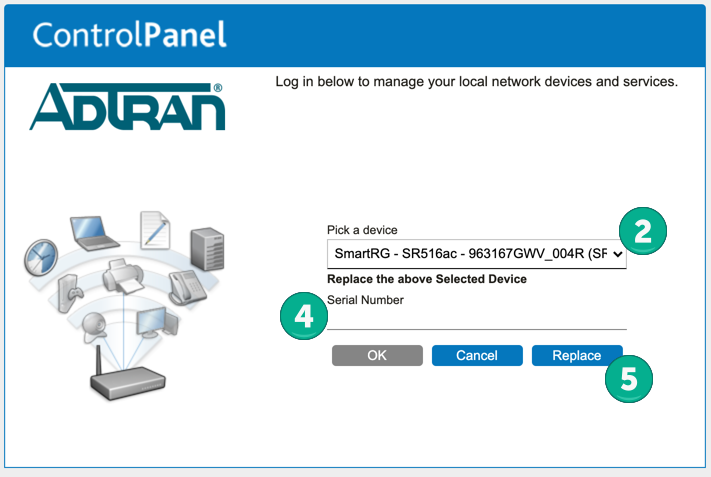
Once this new device is cabled up, comes online and Informs to Device Manager, the sync event that takes place will copy all of the settings Device Manager has stored from the original device that was provisioned to this subscriber over to the new, replacement gateway.