Working With Accounts
Displaying an Account
To display an account:
- Select the Customer Support tab. (This tab appears by default upon logging in to Device Manager.)
- Enter search criteria and select Search.
- In the list of search results, select any blue text on the row for the desired account.
An account window displays summary information about the account in the banner at the top.
If no subscriber or device is associated with the account, the banner displays selectable links indicating that you can associate the missing item (pair a Device with the Subscriber record or pair a Subscriber with a Device-only record).
The left side of the window contains a list of account management tasks you can select. For example, to perform an account management task, select view next to the name of the task.
What Happens When You Display an Account?
When you display an account, the following happens:
- Initial text and data are loaded from the server unless Automatically refresh device data is disabled in your user profile. (select your username in the upper-right corner of the screen to confirm the state this setting.)
- The system attempts to contact the device(s) associated with the account to obtain updated data, unless the device is configured as not contactable.
- If the device is successfully contacted, a message is displayed and the data is updated as needed.
- At the bottom of the Status section in the banner, the Refresh Device Data button appears.
- If the device cannot be contacted, a message is displayed and the Status banner displays an alert.
Working with Subscribers
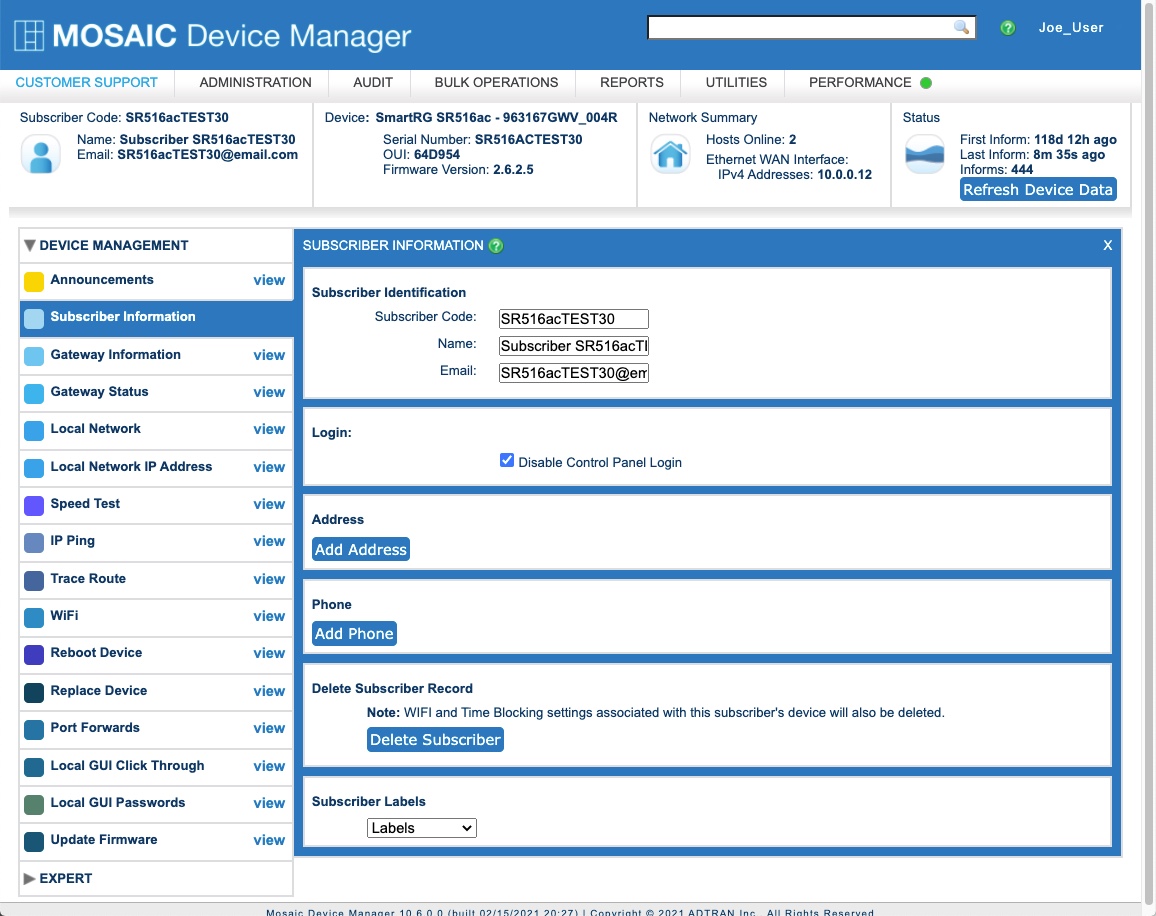
Use the Subscriber window to manage individual subscriber data. The Subscriber window contains several sections of subscriber data.
In the left navigation bar, expand the Device Management drop-down, then select View adjacent to Subscriber Information.
Subscriber Identification
You can view subscriber identification, address, and phone information. This information is read only from this view.
Identification Information
Basic subscriber information includes the following:
- Subscriber code: The unique code assigned to the subscriber when the account was created. Phone numbers are frequently used as subscriber codes.
- Name: The subscriber’s full name.
- Email: The subscriber’s e-mail address.
Control Panel Access
You can manage customers’ access to their CPE device control panel.
To enable control panel login, uncheck the Disable Control Panel Login check box.
To disable control panel login, check the Disable Control Panel Login check box.
Control Panel Login Credentials
- In the Login field, enter the subscriber’s login name.
- To generate a password for the subscriber, select the Generate Password buton.
--If the subscriber has an existing password, select Change Password, then Generate Password to generate a new one. - To enable the generated password to be sent to the subscriber, check the Notifications will be sent to subscriber@address.com check box.
- To access the subscriber’s control panel, select the Access Control Panel link as shown in the Account Window image above.
Address
In many implementations, address information is imported to Device Manager via back office integration with other office systems however it is possible to manually add one or more addresses for the subscriber here.
- Select the blue Add Address button
- Complete the necessary fields
- Select the Save button in the upper right to commit your changes.
Phone
In many implementations, contact phone information is imported to Device Manager via back office integration with other systems however you can manually add one or more addresses for the subscriber here.
- Select the blue Add Phone button
- Complete the necessary fields
- Select the Save button in the upper right to commit your changes.
Delete Subscriber
When a subscriber terminates their service, it is best practice to clean up your Device Manager database by deleting Subscriber records. To delete a subscriber,
- Select the blue, Delete Subscriber button.
- Answer the confirm dialogue by selecting the OK button.
To learn more about maintaining your Device Manager system, subscriber lifecycle and related topics, see the following video tutorial.
Video Tutorial
Subscriber Labels
From the Labels drop-down list, you can apply an optional label to this subscriber record.
Learn more about Labels: